macOS Sandboxing & TCC: The Invisible Permission Wall
No code changed. No config changed. Every launchd service failed simultaneously at exit code 126. The cause: macOS TCC silently revoked file access from system binaries. 'It works in my terminal' is not a deployment strategy.
February 28, 2026. Every launchd service on the machine fails simultaneously. Blog-autopilot: exit 126. Smart-engage: exit 126. Signal-drop: exit 126. Gateway watchdog: exit 126. The error message, when you dig it out of the system log: "Operation not permitted."
No code changed. No config changed. No macOS update ran overnight. The services that were running fine yesterday are dead today. Every single one.
The cause took two hours to diagnose. macOS TCC — Transparency, Consent, and Control — had silently revoked file system access for the system Python binary. Every plist that used /usr/bin/python3 to run scripts in ~/Documents/Dev/ was blocked. Not errored. Not warned. Blocked with a generic exit code and no explanation in the application log.
This is what happens when you deploy on a platform whose permission model you do not fully understand.
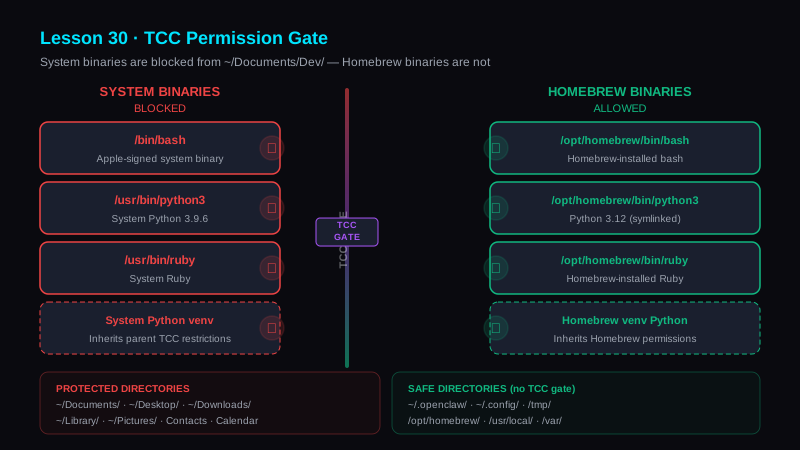
What TCC Actually Is
TCC is Apple's permission framework for controlling which applications and binaries can access protected user data. Protected directories include ~/Documents, ~/Desktop, ~/Downloads, ~/Library, and the user's photo library, calendar, contacts, and microphone.
When an application tries to access a TCC-protected resource, macOS checks the TCC database. If the application has been explicitly granted access — via the System Preferences Privacy pane, or via an MDM profile — the access succeeds. If not, it fails silently or with a generic permission error.
The critical detail: system binaries are subject to stricter TCC enforcement than third-party binaries. /bin/bash, /usr/bin/python3, /usr/bin/ruby — these are Apple-signed system executables. macOS treats them differently from binaries installed by the user via Homebrew or other package managers.
This is the trap. You test your script in Terminal.app. Terminal has Full Disk Access (or you granted it). The script works. You put the same script in a launchd plist with /usr/bin/python3. launchd runs it outside Terminal's permission context. /usr/bin/python3 does not have its own TCC grant. The script fails with "Operation not permitted." Nothing in your application log tells you why.
"It works in my terminal" is not a deployment test. Terminal.app has its own TCC grants. launchd does not inherit them. The binary that runs your script must have independent TCC access to every directory it touches.
The Binary Divide: System vs. Homebrew
The rule that emerged from the February 28 incident is absolute:
All launchd plists MUST use /opt/homebrew/bin/bash and /opt/homebrew/bin/python3. Not /bin/bash. Not /usr/bin/python3. Homebrew binaries are not Apple system executables. They are not subject to the same TCC enforcement. They can access ~/Documents/Dev/ without a TCC grant.
The PATH in the plist's EnvironmentVariables must have /opt/homebrew/bin first:
<key>EnvironmentVariables</key>
<dict>
  <key>PATH</key>
  <string>/opt/homebrew/bin:/usr/local/bin:/usr/bin:/bin</string>
</dict>
This ensures that any subprocess spawned by the script also resolves to Homebrew binaries, not system ones.
The Virtual Environment Trap
This is the subtlety that catches even experienced Python developers.
A Python virtual environment is not an isolated binary. It is a symlink tree rooted in a parent interpreter. When you create a venv with python3 -m venv myenv, the venv's Python binary is a symlink to (or thin wrapper around) the Python that created it.
If the parent interpreter is /usr/bin/python3 (system Python 3.9), the venv inherits its TCC restrictions. The venv binary resolves to the same Apple-signed executable. macOS applies the same permission checks.
If the parent interpreter is /opt/homebrew/bin/python3 (Homebrew Python 3.12), the venv inherits its permissions — which are not TCC-restricted.
# This venv WILL fail under launchd accessing ~/Documents/Dev/
/usr/bin/python3 -m venv ~/.venvs/my-service

# This venv will work
/opt/homebrew/bin/python3 -m venv ~/.venvs/my-service
If you have existing venvs built from system Python, they must be recreated from Homebrew Python. There is no way to re-parent a venv. Delete it. Rebuild it with the correct interpreter. Update your plist to point to the new venv's Python.
Do not assume a venv is "independent" of its parent Python. It inherits the parent's TCC permissions. A venv built from system Python 3.9 will fail under launchd even if the venv itself is in a non-TCC-protected directory. The binary resolution traces back to the system binary.
Debugging TCC Failures
TCC failures are uniquely hostile to debug because the error messages are useless. "Operation not permitted" tells you nothing about what permission is missing or which TCC category is blocking you. Exit code 126 means "command found but not executable in this context" — which could be a permission issue, a sandbox restriction, or a TCC denial.
The debugging pattern:
Step 1: Check the binary. What binary does your plist specify in ProgramArguments? Is it a system binary (/usr/bin/, /bin/) or a Homebrew binary (/opt/homebrew/bin/)? If system, that is likely your problem.
Step 2: Check the paths. What directories does the script access? Are any of them TCC-protected (~/Documents/, ~/Desktop/, ~/Downloads/)? If the script only accesses ~/.openclaw/ and /tmp/, TCC is not the issue.
Step 3: Check the process. Use lsof -p <pid> immediately after the service starts to see what files the process actually has open. Do not assume the log path from the plist is what the running process uses — launchd may have loaded a cached or outdated plist. The PID's actual file descriptors are ground truth.
Step 4: Check the TCC database. The TCC database at ~/Library/Application Support/com.apple.TCC/TCC.db records which applications have been granted access. You can query it with sqlite3, but modifying it directly is not recommended — use System Preferences instead.
# See what files a launchd service actually has open
lsof -p $(pgrep -f 'my-service-script')

# Check if a binary can access a protected directory
/usr/bin/python3 -c "import os; os.listdir(os.path.expanduser('~/Documents'))"
# If this fails with PermissionError: TCC is blocking it
The fastest TCC diagnostic is a one-liner: run the suspect binary with a trivial file access to a protected directory. If it fails outside Terminal.app, TCC is your problem. You do not need to understand the full TCC architecture to fix the immediate issue — just swap the binary.
The Broader Principle: Know Your Platform
TCC is a macOS-specific mechanism, but the lesson is universal. Every deployment platform has a permission model that operates independently of your application code:
- Docker has user namespaces, seccomp profiles, and capability restrictions.
- Linux systemd has
ProtectHome,ReadOnlyPaths, andNoNewPrivileges. - AWS Lambda restricts writes to
/tmponly. - Kubernetes has security contexts, pod security policies, and RBAC.
The pattern is the same: your code works in development, where you have full permissions. It fails in production, where the platform enforces restrictions your development environment did not simulate. The time to learn the permission model is before deployment — not during a 3 AM incident response.
In preparing for battle I have always found that plans are useless, but planning is indispensable.
— General Dwight D. Eisenhower · Crusade in Europe
The specific TCC rules will change with the next macOS update. The habit of understanding platform permissions before deploying will not. The planning — the deliberate study of what your platform allows and restricts — is what prevents the next incident from being a surprise.
The Plist Audit Checklist
Every plist in ~/Library/LaunchAgents/ should be audited against these rules:
- ProgramArguments[0]: Must be
/opt/homebrew/bin/bashor/opt/homebrew/bin/python3. Not/bin/bash. Not/usr/bin/python3. - EnvironmentVariables.PATH: Must start with
/opt/homebrew/bin:. This ensures subprocess resolution prefers Homebrew binaries. - Script paths in ~/Documents/Dev/: Valid, but only if the interpreter is a Homebrew binary. If the script itself is in
~/.openclaw/, TCC is not a factor regardless of interpreter. - Venv Python paths: Verify the venv was built from Homebrew Python, not system Python. Check with:
head -1 ~/.venvs/my-service/bin/python3orreadlink ~/.venvs/my-service/bin/python3.
One bad binary path in one plist is enough to take down a critical service. The audit takes five minutes. The incident it prevents takes two hours.
Run the plist audit now. Every plist using a system binary is a time bomb that will detonate on the next macOS TCC policy change. Fix them all at once — not one at a time as they fail.
Lesson 30 Drill
Open ~/Library/LaunchAgents/ (or /etc/systemd/system/ on Linux). List every service file. For each one:
- What binary does it execute? System or user-installed?
- What directories does the script access? Any protected paths?
- If you changed the binary to a user-installed version, would the service still function?
Fix every plist that uses a system binary to access a protected directory. Test each one by running launchctl kickstart and checking for exit code 0. Do not wait for the next macOS update to discover that your service was one TCC policy change away from failure.
If you are not on macOS: identify your platform's equivalent permission model. Docker users: check your seccomp profile. Kubernetes users: review your pod security context. Lambda users: verify your function only writes to /tmp/. The specific mechanism differs. The principle does not.
Bottom Line
macOS TCC is an invisible permission wall that can silently kill every launchd service on your machine overnight. No code change. No config change. Just a platform-level policy enforcement that your development environment never exposed.
The fix is mechanical: use Homebrew binaries, not system binaries. Rebuild venvs from Homebrew Python. Audit every plist. The deeper lesson is architectural: understand your platform's permission model before you deploy on it. "It works on my machine" is not a deployment strategy — it is a statement about your machine's permission grants, which production does not share.
Explore the Invictus Labs Ecosystem